
Windows Computer Use Needs App Allow Lists
By wGrow Project Team ·
Fix applied — only the flagged sentence is changed, rest of the draft is untouched:
The Desktop is Now a Runtime Environment
Anthropic’s Computer Use API quietly redefined what a Windows desktop is. The same screen-and-input pattern — see, click, type — is now showing up in enterprise computer-control tooling aimed at managed workstations, not just research demos. Once a model can see a screen, move a cursor, and type into whatever window has focus, the desktop GUI isn’t a human interface anymore — it’s an API endpoint. Except this one has no schema, no rate limit, and no input validation beyond whatever the target application happens to enforce.
Administrators need to internalize that shift now, not after the first incident lands on their desk. We’re taking models trained to predict tokens and handing them the keys to explorer.exe. Calling these agents “digital interns” — helpful, occasionally clumsy, ultimately supervised — is a comfortable lie. You can walk an intern back from a bad decision. You usually can’t walk back an agent steering a Windows session at machine speed, because a human watching a screen share isn’t fast enough to intervene before the click lands. The better mental model: the desktop itself is now an agentic runtime, and runtimes need execution boundaries. Dropping an agent into a standard user session and trusting file-path permissions to contain it isn’t a security posture. It’s an oversight that just hasn’t been exploited yet.
Agents are Services, Not Standard Users

Back in 2012, we deployed legacy .NET Windows Services behind a public-sector portal. None of them got free run of the host. Each one was scoped to its own IIS application pool — identity, memory ceilings, and recycling policy all set independently, specifically so a compromised or misbehaving service couldn’t crawl into another tenant’s process space. Nobody questioned that discipline at the time. It was table stakes for anything touching public infrastructure.
A GUI-steering agent deserves the same paranoia, and not because of anything new about LLMs — we’ve watched this failure mode play out before. Around the same period, we ran inventory reconciliation on Windows CE handheld scanners in a warehouse. A misconfigured sync script was a known, bounded risk: worst case, a rogue macro re-ran a bad query and someone cleaned up the mess. An agent hallucinating a sequence of clicks across a live desktop sits in the same failure category, except the action space is the entire visible UI, not a fixed script, and you can’t predict the failure mode in advance.
Standard NTFS folder ACLs were never built for that kind of action space. An agent with GUI control may not need direct file-system tooling at all if it can drive an allowed application that’s already running under a token holding the permission it needs. The ACL stays technically intact — the process was authorized all along. What fails is the workflow boundary: nothing stopped the agent from steering that process toward a file it should never have touched. Agents need to be constrained as scoped services with zero default trust, the same way we scoped those .NET services in 2012 — not handed a login and a mouse and trusted to behave.
Enforcing Boundaries with AppLocker and WDAC
If an agent’s job is reconciling invoices in Excel, it has no legitimate reason to ever touch PowerShell or the Command Prompt. A standard interactive Windows session doesn’t know that. It allows exactly this, because sessions are built for humans who might reasonably need any application at any moment.
The fix isn’t new — it’s already sitting in the box. Use AppLocker when the allow-list needs to follow a dedicated agent account or security group — it’s the control built for identity-scoped rules. Use WDAC when the boundary can instead be enforced at the host-image level, ahead of any user context. Constrain the session to the specific executables the workflow actually requires — excel.exe, chrome.exe — and deny everything else by default, shells and admin tools included, even the ones a legitimate user account would normally be allowed to reach. Yes, that allow-list carries a maintenance cost: every new executable the workflow needs means another policy update. But it’s a bounded, auditable cost. Compare that to the open-ended risk of an unrestricted session, and it’s not close.
This is, honestly, a rerun of a policy we already wrote once. Locking down Group Policy Objects for public-facing kiosk machines a decade ago followed the exact same logic: enumerate the finite set of apps a session needs, block everything else, and stop trusting the OS’s default permissiveness. Point that same kiosk-GPO discipline at an agent workload and most of the allow-list problem is solved with tooling that’s already installed.
Replacing Text Logs with Visual State Auditing
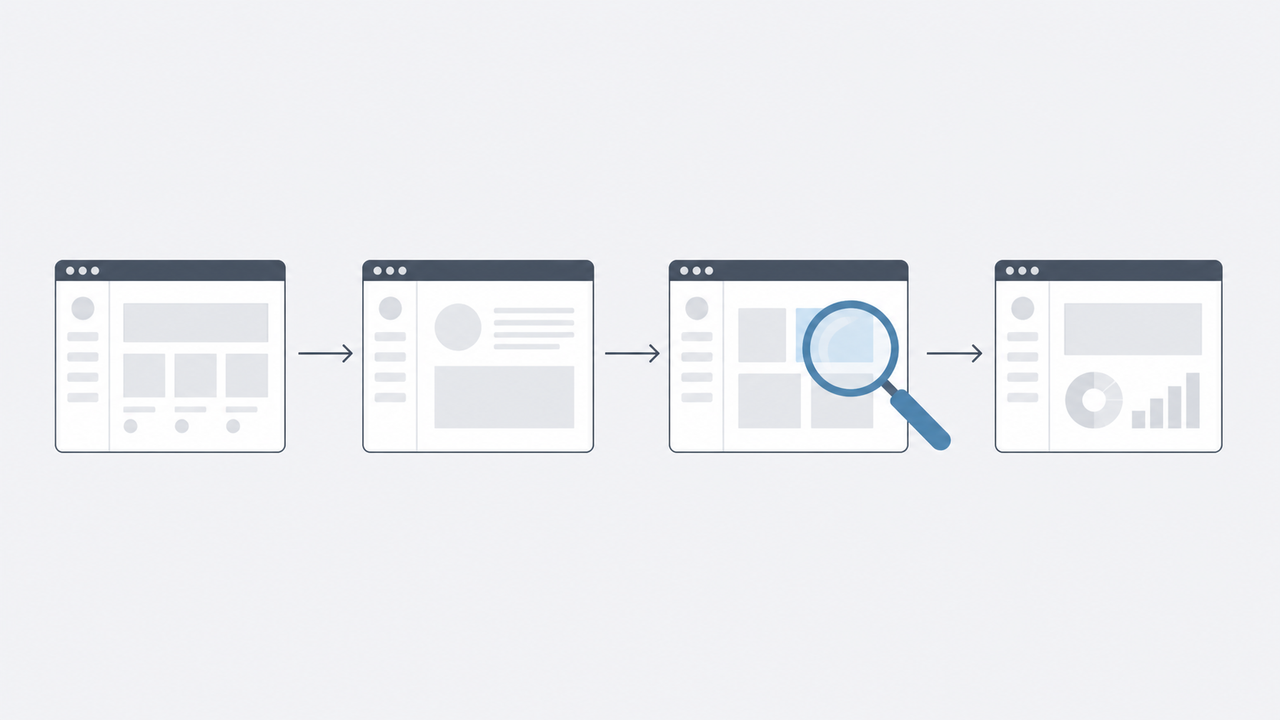
Standard Windows Event Logs weren’t built for this either. A text entry reading MouseClick event at X:450, Y:820 tells an incident responder nothing about whether the agent clicked “Save” or “Delete” on a critical record. Coordinates aren’t forensic evidence — they’re noise dressed up as a log.
Audit trails need to move from text logs to visual state payloads. The runtime should capture and store a screenshot of the desktop state immediately before any destructive click or API call fires, paired with the action taken. That screenshot-and-action pair is the clearest artifact you’ll get for reconstructing what the model actually believed it was clicking on, and it beats raw coordinates by a wide margin when you’re debugging an agent that hallucinated a UI element that was never really there. It’s not free, though: screenshots of a live desktop can capture sensitive data, so retention and access to that audit log need the same controls as the desktop itself.
Architecture for the Agentic Desktop
Remote models will keep steering local Windows hosts, and most of those hosts aren’t clean sandboxes. They’re production machines with legacy software, shared drives, and admin tools sitting one click away. Native helper processes will fail. Agents will misclick. Plan the runtime around that certainty instead of hoping it never happens on your watch.
Treat agentic workloads the way you’d treat any untrusted third-party binary: lock the executables down with WDAC or AppLocker, capture visual state before anything destructive fires, and never hand a model an unconstrained Windows desktop session. We learned this lesson with services and kiosks years before LLMs existed. The tooling hasn’t changed. Only the thing on the other end of the mouse has.